Victron SmartLithium
Victron's managed lithium battery. Sensa shows its cell health on its own, and its full state of charge when it reaches a Victron Cerbo GX through a Victron BMS, such as the Lynx Smart BMS.
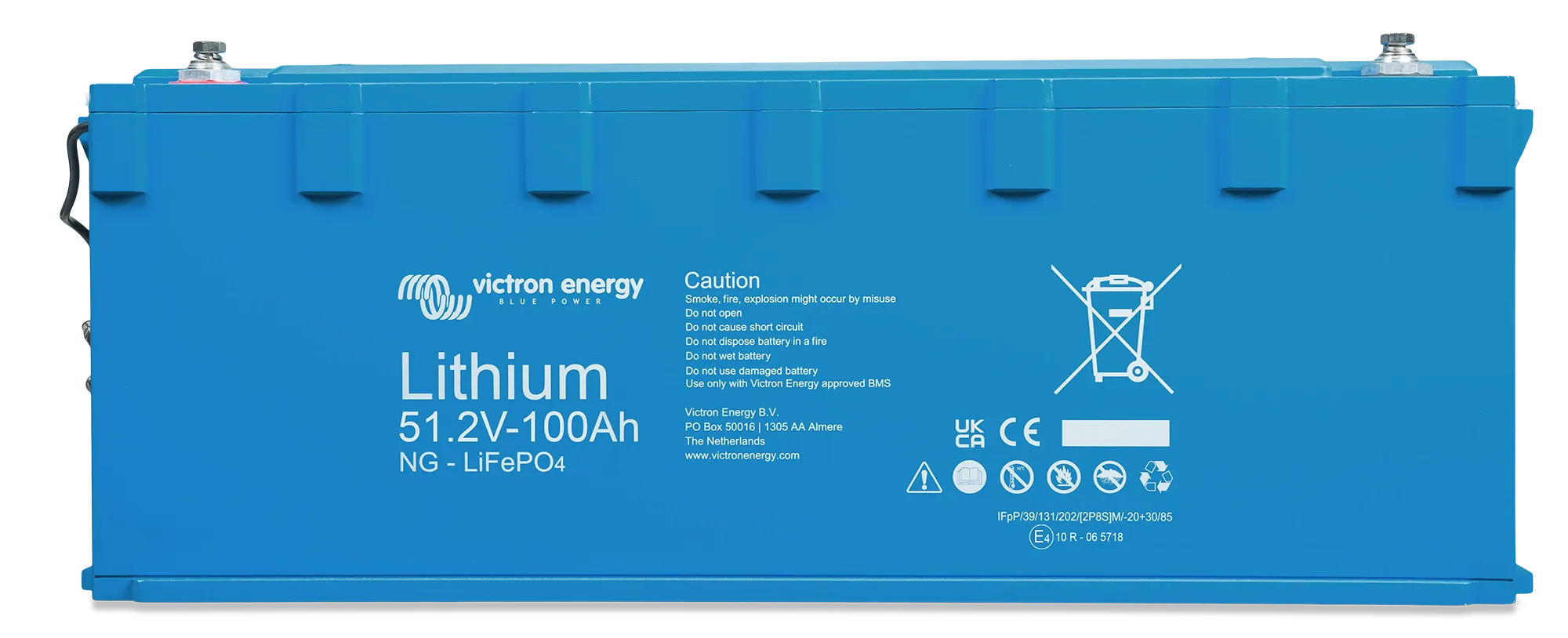
Sensa Connection Method
Bluetooth, or through a Victron BMS, such as the Lynx Smart BMS, connected to a Victron Cerbo GX.
Installation
Install it following Victron's instructions, within Bluetooth range of a Bluetooth proxy or the Sensa unit.
Configuration
Two ways:
- Bluetooth, through a Bluetooth proxy or the Sensa unit's own Bluetooth, within reach of the battery.
- Through a Victron Cerbo GX, with the battery's BMS cables going to a Victron BMS, such as the Lynx Smart BMS, and the BMS connected to the Cerbo's VE.Can port (not its BMS-Can port). The Cerbo needs MQTT on LAN turned on in its own settings.
Adding to Sensa Nomad
Open Settings, choose the Devices tab, tick it under Discovered and press Add Selected Devices. If it is not there yet, press Scan.
On Bluetooth, Sensa asks for the battery's Encryption key when you tick it. You find it in the VictronConnect app under Settings, Product info, Instant readout via Bluetooth, Show. You enter it once.
Through a Cerbo GX, add the Cerbo and the battery's readings come with it.
See Adding devices for more.
What you see
The battery appears on the BMS tab of the Habitation dashboard.
- Over Bluetooth: battery voltage, each cell's voltage, temperature and whether it is balancing.
- Through a Cerbo GX: all of that, plus state of charge and state of health.
Good to know
- No state of charge over Bluetooth. That is how Victron designs it: the battery leaves charge to a shunt or Cerbo. If you also have a Victron SmartShunt, it shows your system's charge separately.
- No cell spread alert. The Battery cell imbalance instinct shows as Unavailable for this battery.