SMLight SLZB Zigbee Coordinator
The SMLight SLZB is a Zigbee coordinator: the radio your Zigbee devices, such as leak sensors, vibration sensors and scene buttons, talk to. Sensa needs one before it can use any Zigbee device.
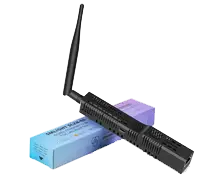
Sensa Connection Method
Network: Ethernet.
Installation
Connect it to your router or network switch with a network cable. Place it near the middle of the van, so its Zigbee signal reaches every device.
Configuration
Set the SLZB up on its own web page before you add it to Sensa:
- Connect it to your router or network switch with a network cable. If your network is split into several secure networks, connect it to the IOT network (192.168.2.0/24). See Network planning.
- Open its web page. On a phone or laptop connected to your van's network, open a web browser and go to
http://slzb-06.local. If that page does not open, find the SLZB in your router's list of connected devices and type its address into the browser instead. - Choose Ethernet. Open Mode and choose Zigbee to Ethernet. The blue light on the SLZB goes out when it is in Ethernet mode.
- Give it a fixed address on your router, usually called a static lease or DHCP reservation. On the IOT network it is on a separate VLAN from your Sensa unit, so it cannot be found by name if its address changes. Its address is also stored in the Zigbee settings and is never chased automatically, so a coordinator that moves has to be put back by hand.
Once it is set up, Sensa finds it on the network it scans, so you do not enter its address.
Adding to Sensa Nomad
Open Settings and choose the Devices tab. If the SLZB is on the IOT network, change the Subnet next to the Scan button to 192.168.2.0/24 and press Scan. Then tick it under Discovered and press Add Selected Devices. If it is not there yet, press Scan again. On a network that is not split, you can leave Subnet as it is.
Sensa then sets up Zigbee to use the coordinator for you. There is nothing to configure and no password to enter.
Sensa cannot find it on the IOT network while the login on the SLZB's own web page is turned on, so leave that off.
See Adding devices for more.
What you see
Once the coordinator is added, press Pair Zigbee on the Devices tab, then the pair button on your Zigbee device, and the device is added to Sensa on its own.
The coordinator is there to carry your Zigbee devices, so the readings you use day to day come from those devices rather than from it.
Good to know
- If every Zigbee device stops answering at once, see Every Zigbee device goes unavailable at once.