SONOFF Zigbee Scene Button
A wireless Zigbee button with four buttons. It switches nothing and reads nothing on its own: each press is something you bind to a routine, so one button can set a scene, switch on the lights or do anything else a routine can.
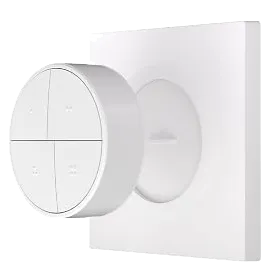
Sensa Connection Method
Zigbee.
Installation
Install it following Sonoff's instructions, within range of your Zigbee coordinator. Mains-powered Zigbee devices pass the signal on, so they extend that range.
Configuration
The button uses Zigbee, so you need a Zigbee coordinator added to Sensa first, such as the SMLight SLZB or the Sonoff Dongle M.
Adding to Sensa Nomad
Open Settings, choose the Devices tab and press Pair Zigbee, then press the pair button on the scene button. Sensa adds it as soon as it joins, and it moves to Added.
If it has been paired before and is waiting under Discovered, tick it and press Add Selected Devices. If it is not there yet, press Scan.
See Adding devices for more.
What you see
The button gets no card of its own. Instead, build a routine with When, Device, and pick the button. Its presses are offered by name, such as Button 1 · single press and Button 2 · double press, so each button and each kind of press can have a different job.