Shelly Plus RGBW PM
A Wi-Fi controller for 12 V and 24 V LED strips. It has four outputs, so it can drive one colour strip or up to four plain white strips, and it measures the power they use.
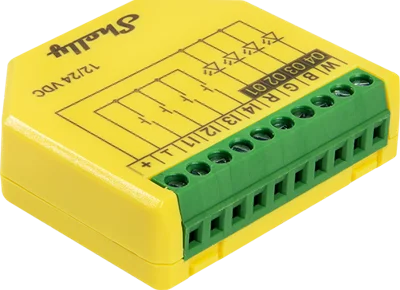
Sensa Connection Method
Network: Wi-Fi.
Installation
Connect it to your LED strips, and power it from a regulated 12 V or 24 V DC supply that matches your strips, following Shelly's instructions. Fit it within reach of your van's Wi-Fi.
Configuration
The controller cannot tell what is wired to it, so you choose the layout yourself and wire your strips to match. To set it:
- Download the Shelly Smart Control app from the App Store or Google Play and install it on your phone.
- Open the app and add your controller, following Shelly's instructions.
- Open the controller, then Settings, then Device profile, and choose the profile that matches your wiring:
| Profile | What it drives | Cards in Sensa |
|---|---|---|
| RGBW | One colour strip with a white channel | One card |
| RGB | One colour strip | One card |
| Light | Up to four plain strips | Four cards, numbered 1 to 4 |
If the profile does not match your wiring, Sensa shows the wrong lights: four white strips left on RGBW appear as one colour card, not four. You can change the profile later, and Sensa follows it.
If your Shellys sit on a separate part of your network, change the Subnet next to the Scan button so that it includes that part, or Sensa will not find them.
Adding to Sensa Nomad
Before you add it:
- Turn the device password off in the Shelly app. Sensa cannot add a Shelly that asks for a password.
- Give it a fixed address on your router, so Sensa can still reach it if the router hands out addresses again.
Then open Settings, choose the Devices tab, tick it under Discovered (it is tagged LIGHT) and press Add Selected Devices. If it is not there yet, press Scan.
See Adding devices for more.
What you see
A card on the Habitation Lighting tab for each light, with a power button and brightness, plus colour and white controls when the strip has them. The first output also shows on the Home screen. See Lighting.
Good to know
- No Shelly cloud account is needed. It works entirely inside the van.