Skydance WZ-SPI LED controller
A Zigbee controller for addressable (pixel) LED strips. It drives a colour strip, and has a set of built-in animated effects. The same controller is also sold as the Gledopto GL-SPI-206P.
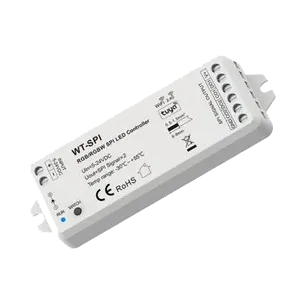
Sensa Connection Method
Zigbee.
Installation
It has two outputs, so it can drive two LED strips, one on each output. Sensa controls it as one light, so both strips show the same thing. Power it from a regulated 5 V to 24 V DC supply that matches your strips, following Skydance's instructions. Fit it within range of your Zigbee coordinator.
Configuration
The controller uses Zigbee, so you need a Zigbee coordinator added to Sensa first, such as the SMLight SLZB or the Sonoff Dongle M.
Adding to Sensa Nomad
Open Settings, choose the Devices tab and press Pair Zigbee, then put the controller into pairing mode. Sensa adds it as soon as it joins, and it moves to Added.
If it has been paired before and is waiting under Discovered, tick it and press Add Selected Devices. If it is not there yet, press Scan.
See Adding devices for more.
Settings on the Devices tab
Open Settings, choose the Devices tab and tap the cog on the controller's row:
- LED Strip Profile: which strip you fitted. Match the product code printed on the reel. If part of the strip stays dark, most often the first few pixels, the profile is usually wrong. See Addressable strips.
- Light Bead Sequence and Chip Type: what the profile has set. Change them by hand only if your strip is not listed.
- Number of Pixels: how many pixels your strip has. It starts at 60. If the far end of a longer strip never lights, raise it.
- Power-On Delay: if the controller is fed from a relay channel, how long it is given to start after the relay comes on. It starts at 0.5 seconds.
- Leave Relay On: if the controller is fed from a relay channel, whether switching the light off leaves the relay on. Off cuts the relay too. See Lights fed from a relay.
What you see
A card on the Habitation Lighting tab with a power button, brightness, colour and an Effect dropdown for the built-in animations. Pick None to stop one. See Lighting.