Teltonika Routers
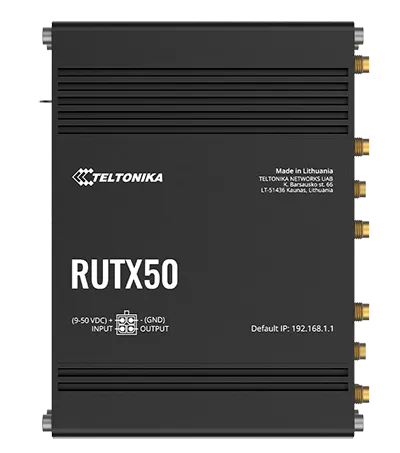
Teltonika routers are what we recommend and sell. Sensa reads the router to show whether you are online and over what, lets you choose which internet connection is used first, and can use the router's GPS as the van's position.
Sensa Connection Method
Network: Ethernet or Wi-Fi.
Installation
Install the router following Teltonika's instructions. It provides your van's network, so connect the Sensa unit to it.
Configuration
The router provides your van's network. Sensa finds it on that network and talks to it using the router's admin password.
Adding to Sensa Nomad
Open Settings, choose the Devices tab, tick it under Discovered and press Add Selected Devices. If it is not there yet, press Scan.
The router adds without a password, then shows a red Not Configured label. Tap it and enter the router's admin password. The username is always admin.
See Adding devices for more.
What you see
- The Network tab on the Habitation dashboard: Online or Offline, which connection you are on and how good it is, how many devices are connected, and Restart. See Your van's network.
- Order of use: drag your internet connections into the order the router should try them.
- Readings such as mobile signal, connection type, operator and data used.
- GPS, on Pro and Vision, from a router that has it. It drives the Cab speedometer. Switch GPS on in the router itself first.
- Config Network, on the router's cog in Settings, shows what your router needs to match our best practice setup, and sets it up when you press Fix. See Config Network.
- Firmware updates for the router, offered from Sensa. See Updates.
Good to know
- If readings stay unavailable after you enter the password, the router's API may be switched off. In the router's own web page, under System, Administration, Access Control, turn on HTTPS management for the LAN, the HTTPS REST API and Basic Authentication. Leave remote (WAN side) access off.
- Repeated wrong passwords can lock Sensa out. The router's Attack Prevention blocks an address after repeated failed logins. If Sensa cannot reach the router but your phone can, remove your Sensa unit's address from the banned list under Network, Firewall, Attack Prevention, or restart the router.