Adding devices
Once your system is running, you add your devices from the Settings dashboard, on the Devices tab. Sensa looks for devices on its own, in the background, about every 30 seconds, so most of yours will already be waiting there.
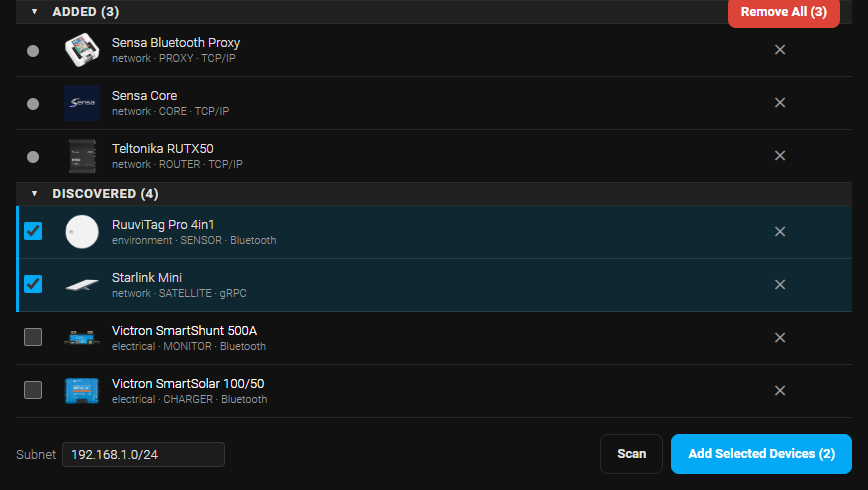
Add a device
- Open Settings and choose the Devices tab.
- Look in Discovered for the devices Sensa has found. If one you expect is missing, press Scan to look again straight away.
- Tick each device you want, then press Add Selected Devices.
Devices you have added move to Added. Each row has a cog that opens that device's settings.
If a device is on a different part of your network, change the Subnet next to the Scan button before you scan.
Devices that need a little more
- Teltonika routers and switches add without a password, then show a red Not Configured label. Tap it and enter the device's admin password.
- IP cameras need their stream path, and a username and password if the camera uses one. See Dump camera.
- Victron Bluetooth devices, such as a SmartShunt or SmartSolar, ask for an Encryption key when you tick them. You find it in the VictronConnect app under Settings, Product info, Instant readout via Bluetooth, Show.
- Victron Cerbo GX needs MQTT on LAN turned on in its own settings. If it shows Needs network, connect the Cerbo to your van's network first.
- Battery devices that sleep, such as a smoke alarm, cannot be found while asleep. Wake it, usually with its test button, then scan and add it straight away.
- Zigbee devices are paired rather than scanned. Once your Zigbee coordinator is added, press Pair Zigbee, then the pair button on the device.
Tidying the list
- Ignore a device you never want to add with the ✕ on its row. It moves to Ignored, where ↩ brings it back.
- Remove an added device with the ✕ on its row, then Are you sure?.
Some devices cannot be ticked. Not included in your Sensa edition means your tier does not cover it, see Choose your tier. Already at limit means you already have as many of that device as your system takes.
For the full list of devices Sensa supports, see Devices.