Network
Before installing a Sensa Control System, a network is required. Depending upon requirements, it can be anything from a basic router to an extensive router and multiple switch setup. Internet is not required for the installation but useful.
The short answer
Sensa needs a local network. It does not need an internet connection.
Those are two separate things, and only the first is a requirement.
A local network is what lets the tablet talk to your Sensa unit, and what lets your Sensa unit talk to your lights, heating, batteries and tanks. It does not have to reach the internet. A van parked in a field with no signal at all works perfectly well, as long as something inside it is providing a network.
The question worth asking
In a lot of vans, the thing providing the network is also the thing providing the internet, and it gets switched off to save power, or it leaves in somebody's pocket. So the question is not "do you have internet in the van". It is:
When you switch that off, is there still a network in the van?
If the answer is no, your screens and most of your controls go with it until you switch it back on. Nothing is broken and nothing is lost, but nothing responds either.
What the local network is doing
Three jobs, and only the third has anything to do with the internet.
- Your tablet talking to your Sensa unit. Every screen you use, Habitation, Cab, Mobile, Intelligence and Settings, is served by the unit in the van. Your tablet displays them, it does not hold them. No network, no screens.
- Your Sensa unit talking to your devices. Relay boards, heaters, the van level sensor, the Cerbo, your router, your Starlink dish and a networked Zigbee coordinator are all reached over the van's own network. Bluetooth devices look like a way round this, and mostly are not, because the Bluetooth proxy that reaches them is itself on the network.
- Reaching Sensa. Registering your licence, updates, the map, journeys and remote access. This is the only part that needs the internet, and it degrades gracefully. See Working offline.
Setups that work, and setups that do not
| What is providing the network | Does it work? |
|---|---|
| A dedicated LTE router in the van | Yes. This is the designed case, and what we recommend |
| A MiFi | Yes, as long as it stays powered. Rarely supports VLANs, so it is not our preference |
| Starlink, left on permanently | Yes |
| Starlink, switched on when you want internet | No |
| A phone hotspot, switched on when you want internet | No |
The dividing line is not the internet. It is whether a network still exists when the internet source is switched off.
A phone hotspot
Fine as a source of internet. Not a substitute for a network.
The hotspot is the network, so when the phone is off, asleep, or has gone to the shops with its owner, there is nothing in the van for your tablet or your Sensa unit to talk over. On top of that, some handsets stop connected devices from seeing each other at all, which leaves your tablet unable to reach your unit even though both show a good connection. It is worth checking on the actual handset.
Starlink switched on sometimes
The same problem, for the same reason. The Starlink router is a perfectly good network while it is powered, and a van that switches the dish off to save power switches its network off too.
Starlink always on, a MiFi, or a dedicated router
All three work, because all three are a network that is there whether or not anyone wants the internet. A battery-powered MiFi that sleeps to save charge turns back into the hotspot case, so check its power settings.
What we recommend
VLANs are an important part of security, and they are what lets us keep cameras, sensors, guests and your own phone and laptop apart on the same physical network. Most MiFi units do not offer VLANs, so everything ends up on one flat network. A MiFi will run a Sensa system perfectly well, it just cannot be secured the way we would like.
If you are choosing hardware now rather than working with what is already fitted, choose a router with VLAN support. It costs little more at the planning stage and it cannot be added later without replacing the router.
Why Teltonika?
Teltonika routers are our supported, chosen networking equipment, due to
- quality
- automotive design
- wide power input
- API for control
Multi VLANs
All our installations include multiple VLANs for security:
- Starlink is changed to the 192.168.3.0/24 range in the Starlink app so that it does not conflict with our network.
- Cameras should be separated without internet access.
- Guest networks keep temporary users separated.
- Separate Iot protects the Main network if a sensor firmware is cracked.
- Lastly the Main network is free from noise and stays secure for your mobile and laptop sensitive data.
Our default VLAN setup is:
| VLAN | Network Range | Notes |
|---|---|---|
| Main | 192.168.1.0/24 | Admin and secure data network for Core, laptop and phone |
| IOT | 192.168.2.0/24 | Internet only. It cannot start a conversation with anything on another network, including Main |
| Starlink | 192.168.3.0/24 | Reconfigure Starlink to use this range on the Starlink app |
| Camera | 192.168.4.0/24 | No internet access, and no access to any other network |
| Guest | 192.168.5.0/24 | Only internet access, no access to other vlans |
Your Sensa unit sits on Main and can reach every other network, so it goes on polling your batteries, your tanks and your cameras exactly as it would on a flat network. Nothing can reach back the other way, and that one-way arrangement is the whole point: a camera or a cheap wireless sensor with cracked firmware cannot see your laptop, cannot see the other cameras, and cannot open the router's own settings page.
The Wi-Fi networks you end up with
Where we supply the router, your van is given a name and the Wi-Fi networks are built from it. A van named hawthorn gets:
| Network | For | Password |
|---|---|---|
hawthorn_2g and hawthorn_5g | Your own phones, tablets and laptops | One password, shared between the two |
hawthorn_iot | Habitation kit only, on 2.4 GHz | Its own |
hawthorn_guest | Visitors | Its own |
Your two networks share a password on purpose, so you have one Wi-Fi password to remember and your devices pick whichever band is better where you are standing. Not every router has a 5 GHz radio, and on one that does not you simply get the 2.4 GHz network on its own.
Guests are also stopped from seeing each other, not just from seeing you. On a router that cannot host all four networks at once, guest is the one we leave out, and we tell you.
The habitation network is 2.4 GHz only because that is all the kit that joins it can do.
Fixed addresses stop being optional
On a flat network, a device that gets handed a different address usually finds its own way back. Split across VLANs it does not: your Sensa unit and the device are no longer on speaking terms in the way that recovery depends on, so a changed address breaks the connection and stays broken.
So on a segmented install every device on the IOT and Camera networks is pinned to a fixed address on the router. Your Zigbee coordinator matters most of all, because its address is stored inside the Zigbee settings and is deliberately never chased automatically: chasing it risks taking your whole Zigbee network down, so a coordinator that moves has to be put back by hand.
Configurations
Level 1 - 4G
The following diagram depicts a minimal setup with 4G support. Not all VLANs may be required, depending upon the setup. The camera VLAN is not required if there are no CCTV cameras external or internal. This setup would typically be a mainly Wifi setup with 1 LAN port to be used for our Core unit.
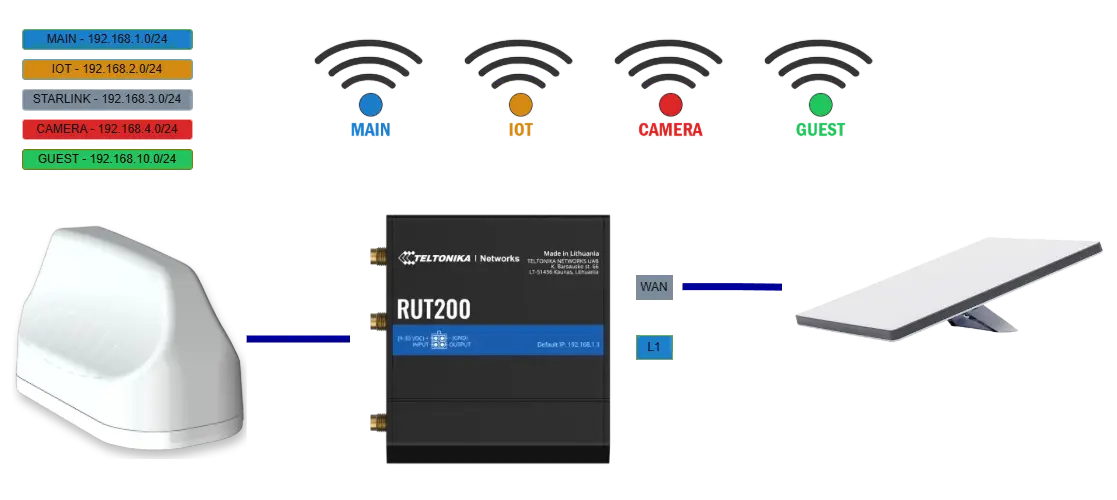
- Teltonika RUT200 LTE Router
- Number LAN Port: 1 Used for Core
- Number WAN Port: 1 Used for Starlink if used
- LTE Support: 4G only
- Multiple SSIDs/VLANS for security
- Optional Starlink Mini
Level 1 - 5G
The following diagram depicts a minimal setup with 5G support. Not all VLANs may be required, depending upon the setup. The camera VLAN is not required if there are no CCTV cameras external or internal. This setup would typically be a mainly Wifi setup with 1 LAN port to be used for our Core unit.
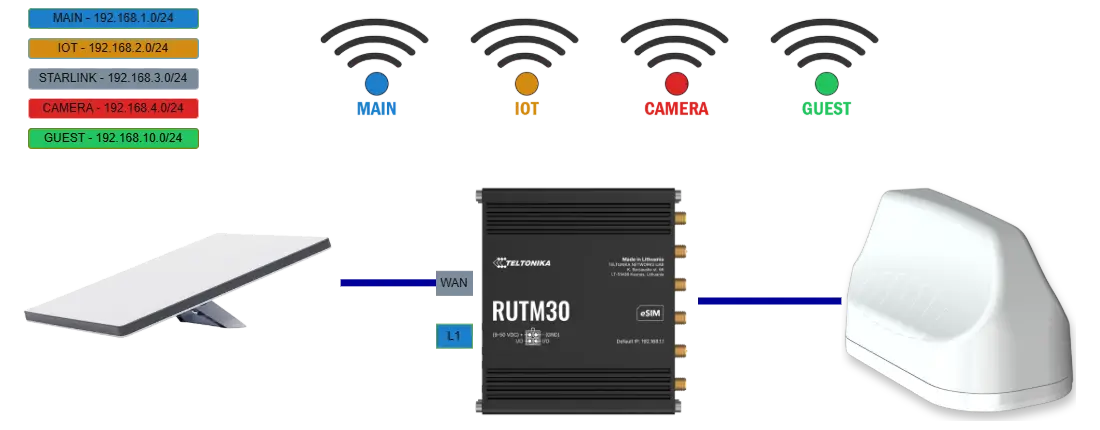
- Teltonika RUTM30 LTE Router
- Number LAN Port: 1 Used for Core
- Number WAN Port: 1 Used for Starlink if used
- LTE Support: 4G and 5G (Reduced Capacity)
- Multiple SSIDs/VLANS for security
- Optional Starlink Mini
Level 2 - 4G
The following diagram depicts an extensive setup with 4G support. Not all VLANs may be required, depending upon the setup. The camera VLAN is not required if there are no CCTV cameras external or internal.
This setup would typically be used in a premium installation that requires wired devices instead of wifi connections and GPS capability. The TSW202 switch allows each port to be tagged for a specific VLAN. The lower TSF000 is a low profile switch which does not support VLAN tagging. This setup is ideal when a smaller switch is required just for IOT purposes on the other side of the vehicle.
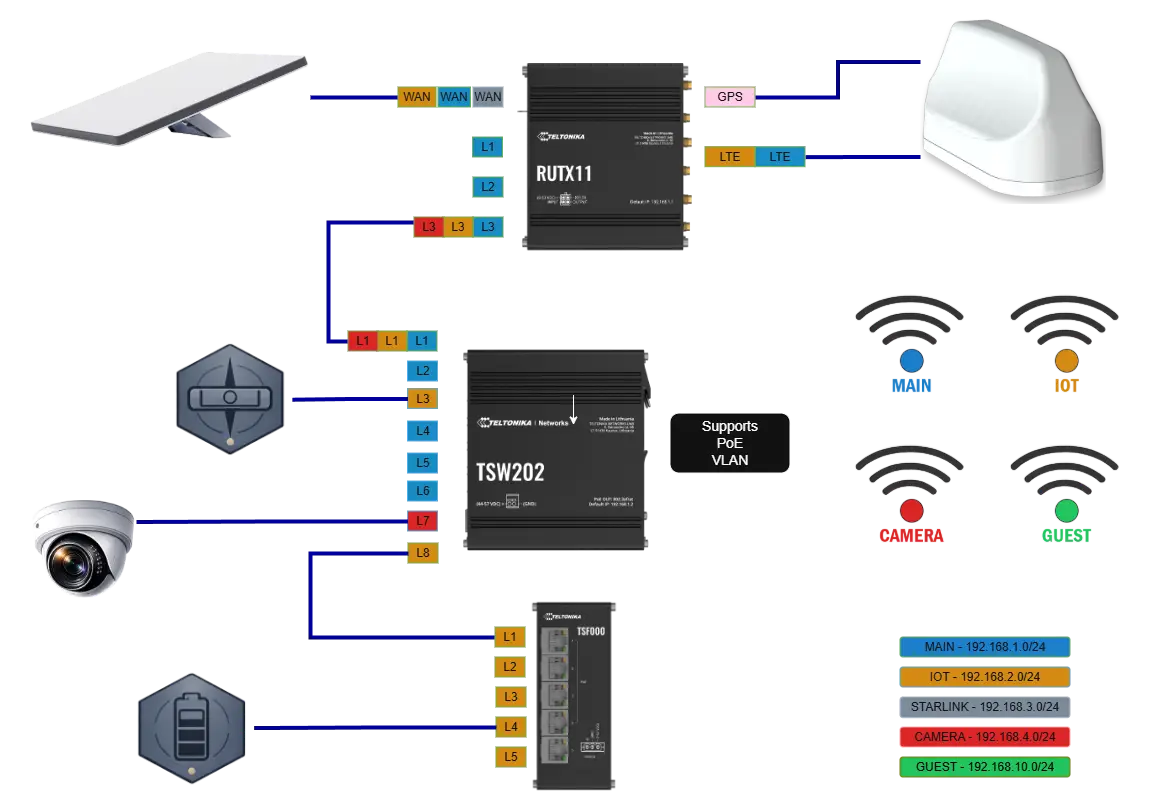
- Teltonika RUTX11 LTE Router
- Number LAN Port: 3 1 Used for Core, 2 remaining ports can be used for Main, IoT or Camera
- Number WAN Port: 1 Used for Starlink if used
- LTE Support: 4G only
- Multiple SSIDs/VLANS for security
- TSW202 switch with VLAN support
- TSF000 low profile switch with no VLAN support
- Optional Starlink Mini
Level 2 - 5G
The following diagram depicts an extensive setup with 5G support. Not all VLANs may be required, depending upon the setup. The camera VLAN is not required if there are no CCTV cameras external or internal.
This setup would typically be used in a premium installation that requires wired devices instead of wifi connections and GPS capability. The TSW202 switch allows each port to be tagged for a specific VLAN. The lower TSF000 is a low profile switch which does not support VLAN tagging. This setup is ideal when a smaller switch is required just for IOT purposes on the other side of the vehicle.
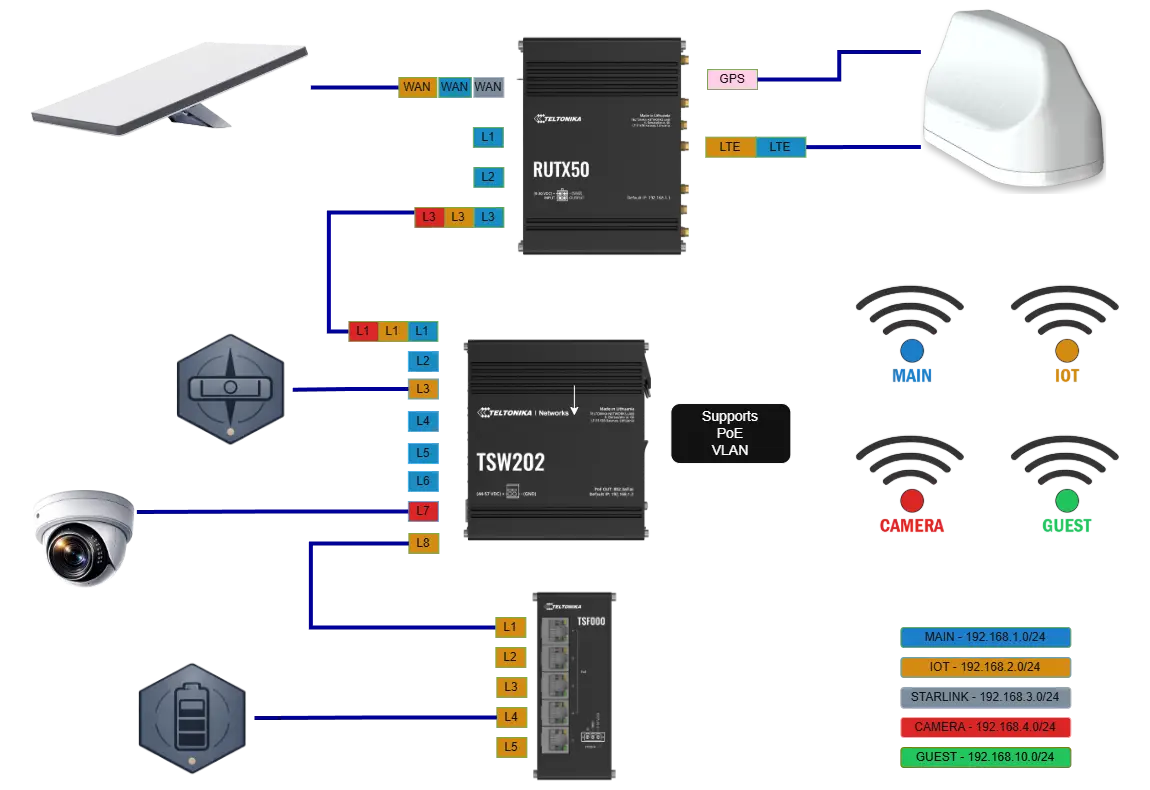
- Teltonika RUTX50 LTE Router
- Number LAN Port: 3 1 Used for Core, 2 remaining ports can be used for Main, IoT or Camera
- Number WAN Port: 1 Used for Starlink if used
- LTE Support: 4G and 5G
- Multiple SSIDs/VLANS for security
- TSW202 switch with VLAN support
- TSF000 low profile switch with no VLAN support
- Optional Starlink Mini
What to do
- Keep one thing in the van that provides a network and stays on. It does not need to provide internet, and it does not need to be expensive. It needs to be on whenever you want to use your system.
- If your internet source is also your network, expect the system to go quiet when you switch it off. That is a perfectly reasonable choice to make, as long as you make it knowingly rather than reporting it as a fault.
- Give your Sensa unit a fixed address on any router you control, usually called a static lease or a DHCP reservation. Do the same for your Zigbee coordinator if you have one. This is the single most useful thing you can do.
- Check that your network lets devices see each other. The symptom when it does not is a tablet that cannot reach your unit despite both showing a good connection.
Open the Cab dashboard and go to the Parking tab. The internet reading there works on every van, including one running on a hotspot or a MiFi, because it comes from your unit's own connection check rather than from a router Sensa knows about. If it reads unknown rather than connected or disconnected, your unit has not managed to run that check yet.
When addresses change
If your router restarts, or you move the van onto a different network, your devices can be handed different addresses than they had before. Most of that recovers on its own, and a fixed address avoids the rest. See A device went unavailable after a power cut or a router restart.
Setting up for the first time with no internet
| Your system | Can it be set up with no internet? |
|---|---|
| Appliance | Yes. It installs itself and every screen comes up. Your licence activates on its own the first time the van gets any connection |
| Enthusiast | Yes. The same, for the same reason |
| DIY | No. Registering your licence or starting a trial is an online step, and there is no way to skip it |
After that first registration a full licence never needs the internet again. It is checked on the unit itself, and being offline does not put your system into read-only, however long it lasts.