Bluetooth Proxy
A Bluetooth proxy in Home Assistant is basically a relay that extends Bluetooth's reach around your vehicle. Even if your server has a bluetooth sensor, there is a limit to the number of active connections a sensor can maintain. We always recommend an additional bluetooth proxy especially if connecting to your battery BMS via bluetooth.
Install firmware on a new unit
You can flash a brand-new unit directly from this page. No drivers, no command line, but you will need the Chrome browser.
Which model do you have?
The Sensa Bluetooth Proxy runs on two M5Stack Atom variants. Check your unit before flashing, because the firmware is different for each.
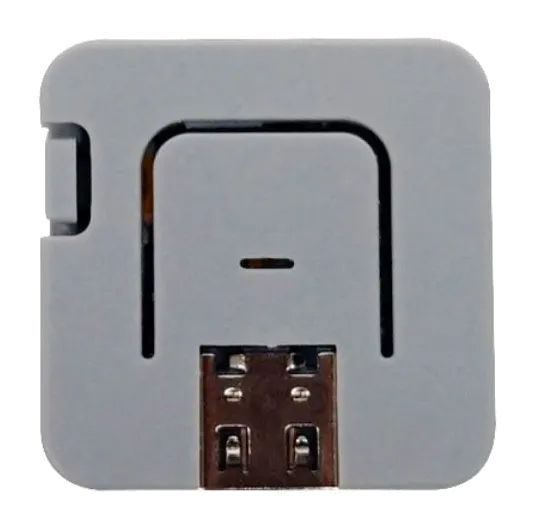
Atom Lite (C008)
Grey in colour
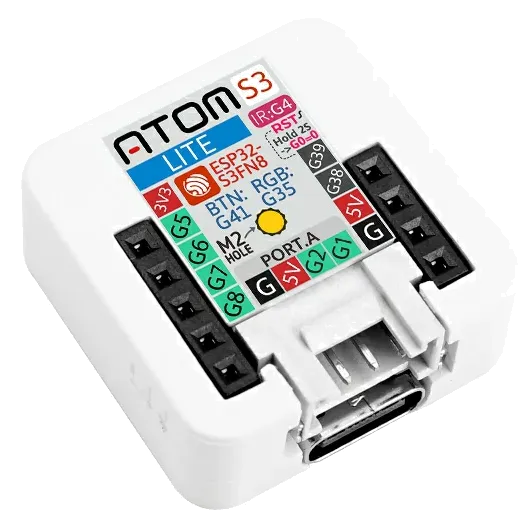
AtomS3 (C124)
White in colour
You will need:
- Your M5Stack Atom (C008 or C124)
- A USB-C cable that supports data (not charge-only)
- A desktop browser that supports Web Serial: Chrome or Edge on Windows, macOS, Linux, or ChromeOS. Safari and Firefox are not supported.
Steps:
- Plug the device into your computer with USB-C.
- Click the Install Firmware button for your model below.
Atom Lite (C008)
AtomS3 (C124)
- In the browser pop-up, pick the serial port for the device
(usually shows up as
USB JTAG/serial debug unitorUSB Single Serial).
If the port picker is empty, try a different USB-C cable, many cables are charge-only and won't carry data. On Windows you may also need to hold the AtomS3's side button while plugging in to force boot mode.
- Choose Install when prompted, then wait, flashing takes about a minute.
- When it finishes, unplug and re-plug the device to boot the new firmware.
Join Wireless Network
Steps:
-
On your mobile or another wireless device, a new wireless SSID should appear named sen-setup-btp. Join this network, the password is sensasetup
-
You will then be presented with a list of all the SSIDs available, select YOUR wireless network and enter YOUR wireless password.
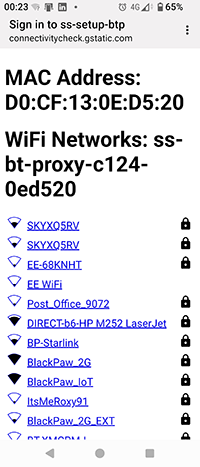
- Power off the device and power on. The device should then join your network.
Running Web Interface
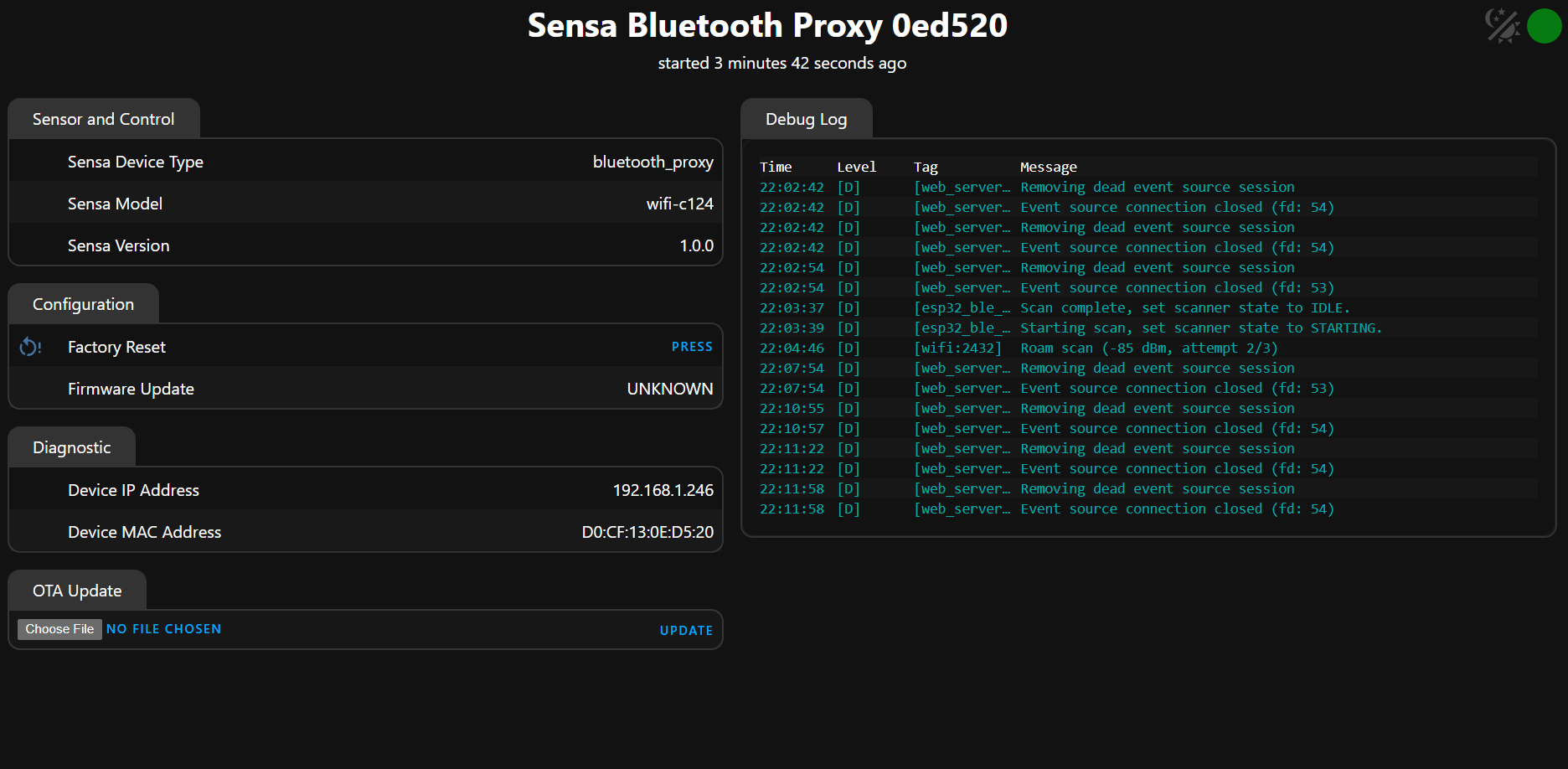
The device has a basic web interface which is useful to ensure the device is running and check the logs.
Steps:
- Identify the IP address of the device from your wireless network. You should see a device named
ss-bt-proxy-c008-xxxxxx(Atom Lite) orss-bt-proxy-c124-xxxxxx(AtomS3), wherexxxxxxis the last 6 characters of the MAC address of the unit. That is used to make them unique in case you have multiple proxies on the network. - Connect to your ip address in your browser
- You will be prompted for a user and password, user: admin, password: sensaweb
Adding to Sensa Nomad
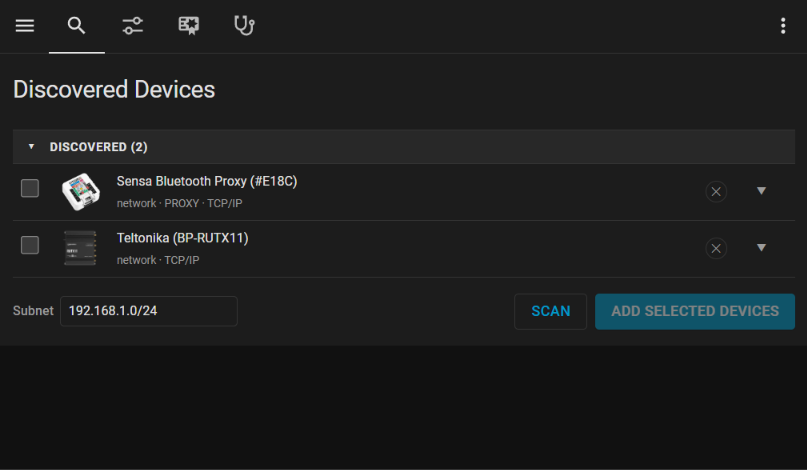
Adding the device into Sensa Control is very straight forward. The device will be discovered by Sensa, just go to Settings dashboard and Devices tab. Your Bluetooth Proxy will probably already be in the discovered group, if not just click on Scan and wait 30 seconds. Their is no further configuration needed.